
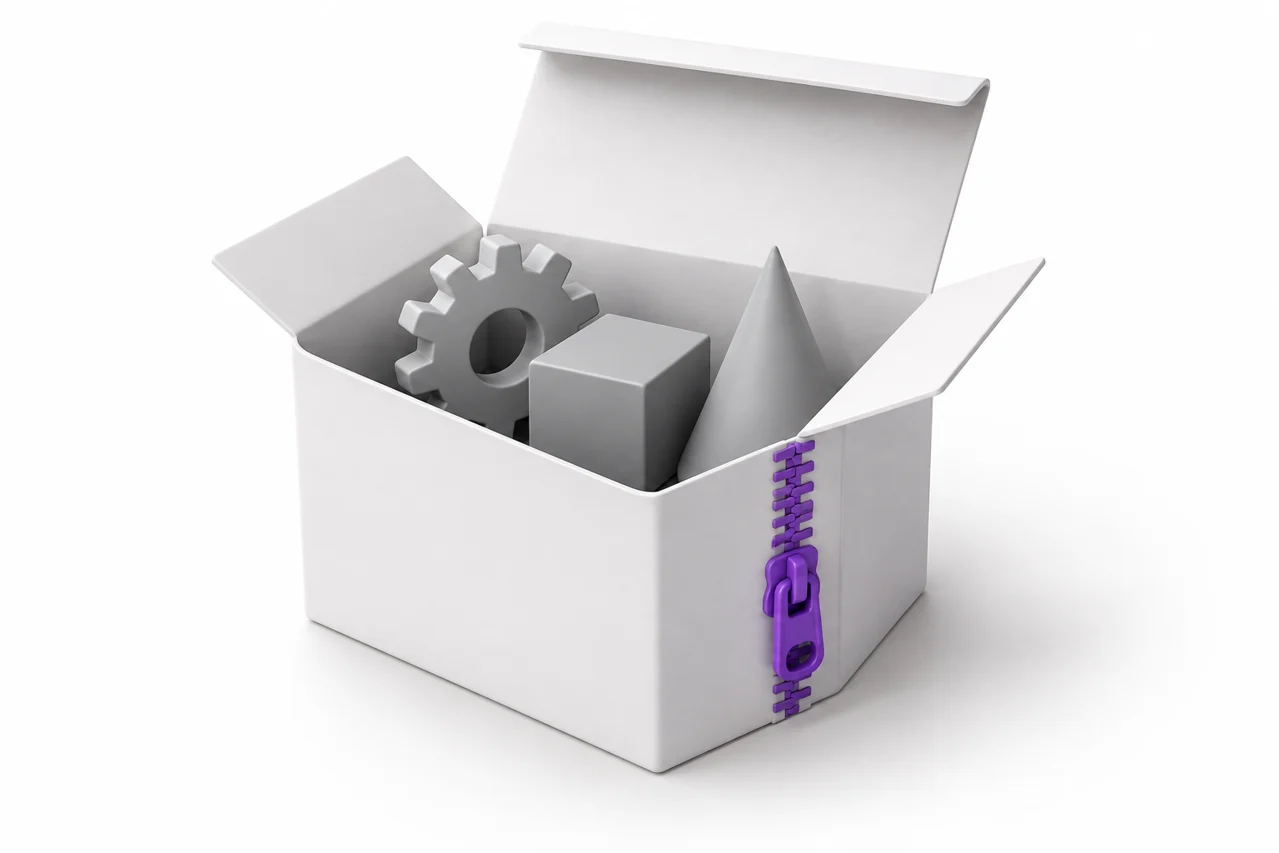
AI-generated editorial illustration, not a screenshot of a conversion result.
A ZIP file is a container, not a three-dimensional model format. It can hold an STL, another kind of model, several alternative versions, texture resources, documentation or unrelated files. A ZIP-to-STL workflow must first identify the intended geometry inside the archive. Sometimes the task is simple extraction; sometimes it also requires converting a supported model.
The ZIP-to-STL tool accepts a package containing exactly one supported model plus its required resources. If a download contains several models, extract them and choose the one you intend to process. This guide explains how to inspect an archive, preserve resource relationships, avoid selecting the wrong revision and verify the final mesh without treating every ZIP as though it were itself printable geometry.
Inspect the archive before choosing a workflow
Open the file listing using your operating system's archive viewer or a trusted extraction tool. Look for model extensions, a readme and any folder structure that explains the package. Filenames such as final, updated or print-ready can be useful clues, but they are not proof of the file's contents or suitability for your intended use.
Identify whether the archive contains one model or a collection. A collection might include separate assembly pieces, alternative sizes, support variants or source files in several formats. Converting everything into one combined mesh would not necessarily preserve the author's intention. Choose the relevant file or process components separately according to the documentation.
If the package already contains the STL you need, extraction may be all that is required. There is no benefit in converting a valid STL through another format just because it arrived in a ZIP. Open the extracted model in the STL viewer and verify dimensions and geometry before moving to slicing.
Recognize extraction versus conversion
Extraction copies a file out of its container without changing its model format. Conversion reads one model representation and writes another. These are separate operations. A ZIP containing an OBJ requires both identifying the OBJ and converting its geometry if STL is the required destination.
The browser archive tool follows a limited, explicit path. It finds one supported model and uses the appropriate geometry reader. Additional resources may be supplied to an importer when needed, but unrelated files do not become geometry. The output remains subject to the underlying format's limitations, including the loss of colors or scene-specific information when written as STL.
If the package contains an unsupported native design document, extracting it does not make it readable by a generic mesh converter. Open it in a compatible authoring application and export a supported mesh or CAD interchange file. The SolidWorks export guide is one example of this source-application workflow.
Keep model resources in their intended relationship
Some formats refer to other files. An OBJ may reference a material library, while a glTF may store geometry data in an external binary resource. The importance of those resources differs: a missing texture may affect appearance, but a missing geometry buffer can prevent the model from loading at all.
Preserve relative paths when repackaging a model. Moving a model file to the archive root while leaving its resources in a different folder can break references. Keep the original organization unless you update the references through a tool that understands the format. Avoid manually renaming resource files without checking how the model points to them.
For geometry-only STL output, many appearance assets are discarded, but that does not justify deleting every associated file indiscriminately. Determine whether a resource contains geometry, materials or textures. Our GLB and glTF workflow guide explains why an embedded binary container can simplify a handoff while still requiring checks on transforms and scale.
Select one intended model from a collection
The archive tool deliberately requires one recognized model. This prevents an ambiguous automatic choice when several candidates exist. If you receive a package with a body, lid and optional adapter, extract and inspect those files individually. Their relationship may be functional, and combining them could destroy clearances or create intersections.
When a package offers several resolutions, choose based on the intended process and the geometry that matters. A high-resolution scan can be unnecessarily heavy for a small decorative print, while an overly simplified file can lose a precise feature. Compare the alternatives rather than assuming that the largest file is always the right one.
Check revision names and documentation together. A newer file may change dimensions or assembly compatibility rather than only improve surface detail. Keep associated instructions with the selected model so that a future user understands which parts belong together. A clear source choice is more valuable than an automatic conversion of an uncertain file.
Understand archive and geometry limits
Compressed size is not the same as expanded size. A relatively small ZIP can unpack into a much larger collection. The browser workflow limits archive contents to control memory use: the archive reader caps the number of files and the total expanded data, and individual model processing has its own limits.
The current archive path permits up to 200 files, a maximum expanded total of 100 MB and no individual expanded file above 50 MB. It also requires one supported model. Geometry output is capped at 1.2 million triangles, and processing has a time limit. These limits describe the tool's supported working range, not a guarantee that every device will handle the largest permitted input equally well.
If a package exceeds the limits, extract it locally and remove unrelated alternatives from a new working copy. Do not discard the original archive until you understand its contents. For very large geometry, simplify or export a more manageable version from the source application, preserving important features and checking the result afterward.
Confirm units after the model is read
The archive wrapper does not establish the model's physical scale. Unit behavior comes from the model format and its contents. An STL or OBJ can contain numeric coordinates without a dependable physical-unit declaration, while supported 3MF geometry can provide an explicit unit context. Verify the converted result accordingly.
Use a known dimension rather than the apparent size in a camera view. If the documentation says a part is 60 mm wide, compare that value with the imported model. A conversion that preserves coordinate numbers can still appear at the wrong physical scale if the destination application interprets those numbers differently.
When there is no stated size, identify a meaningful reference before manufacturing. A visually attractive model downloaded for rendering may not have been designed at real-world scale. Choose an intended size deliberately and inspect thin features after scaling. The archive's filename and compression ratio provide no useful evidence about physical dimensions.
Inspect the STL independently
Once the conversion finishes, rotate the mesh in the preview and check all major components. Look for missing regions, misplaced instances and accidental inclusion of a reference object. Then download the STL and open it in the application where it will be used. Independent import helps identify a mismatch that a single preview might not reveal.
For printing, inspect sliced layers as well as the surface. A model may contain open boundaries, intersecting shells or details below the practical process resolution. The archive converter does not automatically certify printability or repair every mesh defect. Use the mesh editing guide when the geometry needs deliberate cleanup.
If the output is wrong, narrow the problem. Extract the same source model and open it directly in a suitable application. If it is already incomplete there, the archive or source may be missing something. If it loads correctly, compare the supported features and unit assumptions of the conversion path before repeatedly changing unrelated settings.
Keep the license and source documentation
A model's distribution license may be included in a separate text file. Extracting or converting the geometry does not remove the conditions attached to it. Keep the license and attribution information with the model, especially when sharing a modified file or using it in a commercial project.
Separate the original download from your working outputs. A useful folder contains the untouched archive, the selected source model, any necessary resources and the checked STL. Add a short note about the selected revision and intended units. That structure makes later troubleshooting and reuse much easier than keeping only a generically named converted file.
For an uncomplicated example, start with the site's original free STL models. Their intended dimensions and usage terms are stated directly. Once you have verified your viewer and slicer workflow, apply the same checks to more complex archive downloads rather than assuming that every package follows the same conventions.
A useful final check
Before deleting temporary files, confirm that the final STL is the intended object, that it has the expected dimensions and that the license information is retained. If the archive contained several related pieces, keep a record of which one was converted. ZIP-to-STL is dependable when the archive selection is explicit and the underlying geometry is checked, not when the container is treated as a model without inspection.
If you create a new archive for sharing, include only the intended model, required resources and relevant documentation. Clear folder names and a short description of units reduce ambiguity for the next person. Test extraction and opening from that new archive before sending it, so the package itself becomes part of the verified handoff.